- Irvine.zip - code examples and required libraries
- Project32_VS2026.zip - sample 32-bit Visual Studio 2026 project, configured for assembly language
- Project64_VS2026.zip - sample 64-bit Visual Studio 2026 project, configured for assembly language
- Upgrading existing Visual Studio Assembly projects to VS 2026
- Tutorial: Building and running a 32-bit program
- Tutorial: Building and running a 64-bit program
- Building 16-bit programs
- Using the Visual Studio debugger
- EXE Programs blocked by antivirus software
Required Setup for 32-bit Applications
When you install the VS 2026 Community Edition, be sure to include the Visual C++ Desktop development option in your selections. First, let's see if it has already been installed (as often happens in college computer labs). When you start Visual Studio, click the "Create a new project" panel on the startup window: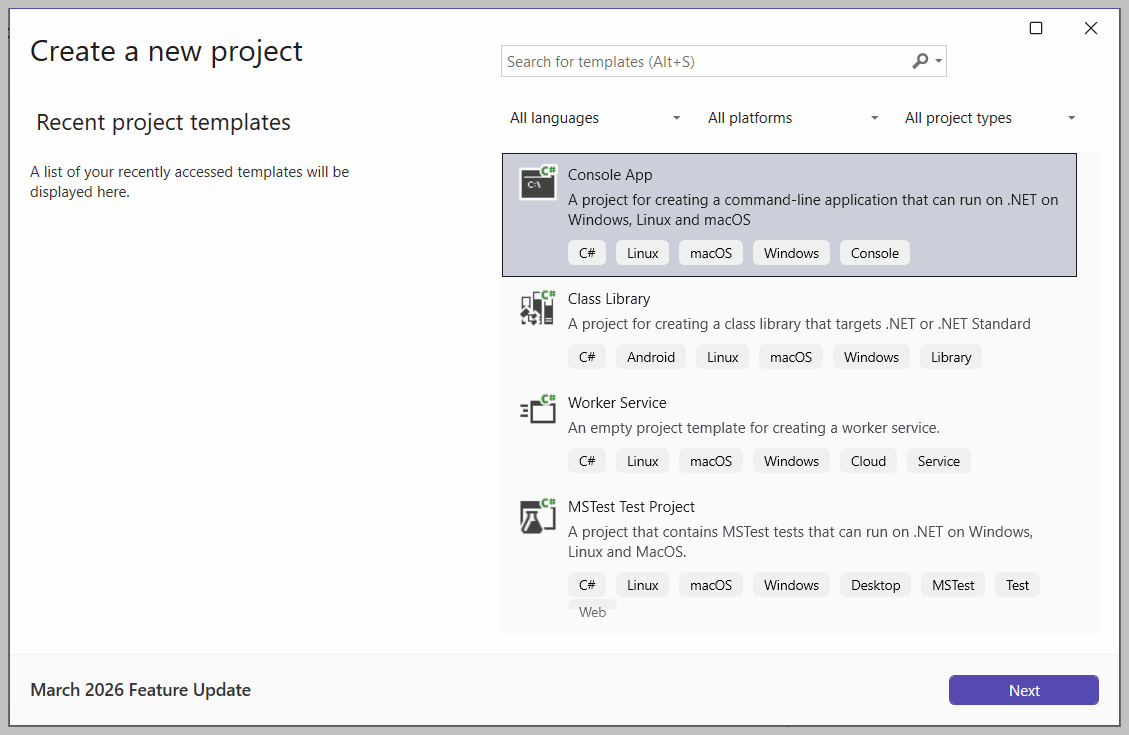 Next, in the Create a new project dialog window, select C++ from the dropdown list that is currently labeled All languages. Now the dialog window will appear like this:
 If you do not see C++ in the list, close Visual Studio and run a separate program named the Visual Studio Installer. If your computer is in a college laboratory, your account may not have sufficient privileges to run this program, so you can ask your lab supervisor to do it for you.
C:\Program Files\Microsoft Visual Studio\2026\Community\VC\Tools\MSVC\14.nn.nnnn\bin\HostX64\x86, where the n characters above indicate digits in the version number of your current VS installation.)
The Book's Example Programs
At the top of this document, we explained how to download the file named Irvine.zip and extract it into the C:\Irvine folder. Unless you have some objection to using that location, do not alter the path. (Note to lab administrators: you can designate c:\Irvine directory as read-only.).The folllowing files should appear in the c:\Irvine directory:
| Filename | Description |
| b16.asm, b32.asm | Blank templates for 16-bit and 32-bit assembly language source files |
| GraphWin.inc | Include file for writing Windows applications |
| Irvine16.inc | Include file used with the Irvine16 link library (16-bit applications) |
| Irvine16.lib | 16-bit link function library used with this book |
| Irvine32.inc | Include file used with the Irvine32 link library (32-bit applications) |
| Irvine32.lib | Irvine's 32-bit link library |
| Kernel32.lib | 32-bit link library for Windows API |
| Link16.exe | 16-bit Microsoft linker |
| Macros.inc | Irvine's macro include file (see Chapter 10) |
| SmallWin.inc | Small-sized include file containing MS-Windows definitions, used by Irvine32.inc |
| User32.lib | MS-Windows basic I/O link library |
| VirtualKeys.inc | Keyboard code definitions file, used by Irvine32.inc |
A subdirectory named Examples will contain all the example programs shown in the book, source code for the book's 16-, 32-, and 64-bit libraries, and a couple of sample projects for earlier versions of Visual Studio.
Configuring Visual Studio
Select the C++ Configuration
Visual Studio supports multiple programming languages and application types. The C++ programming language configuration most closely matches that of assembly language programming, so we suggest the following steps:- Select Tools >> Import and Export Settings from the menu
- Select the "Import selected environment settings" radio button
- Select the "No, just import..." radio button
- Select "Visual C++" from the Default Settings List and click the Next button
- Click the Finish button, then click the Close button
- Notice the tabs on the left and right sides of the Visual Studio workspace. Close the Server Explorer and Toolbox tabs. (Optionally, you can use the mouse to drag the Solution Explorer tool window to either side of the workspace.) If you should ever accidentally close a window in the future, you can bring it back: select View from the menu, and locate the name of the windows from the View menu list.
Optional Step: Set the tab indent size
Start Visual Studio and select Options from the Tools menu. Select and expand the Languages item (near the top of the list), select Defaults, and in the middle panel, scroll down to Tabs. From here, you can set the tab and indent sizes. Optionally, you may want to select the Insert spaces option. The following values are fairly standard for assembly language programming: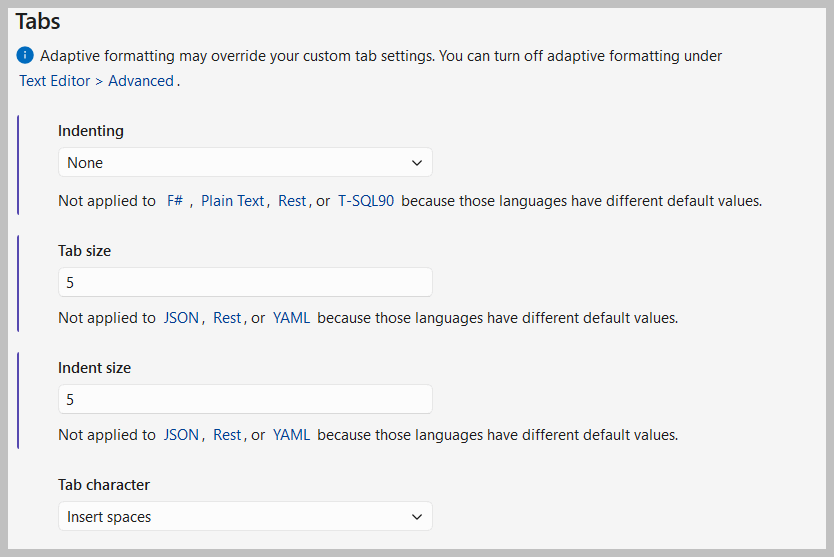
Tutorial: Building and running a 32-bit program
Let's open and build our first 32-bit project.Opening a Project
Visual Studio requires assembly language source files to belong to a project, which is a kind of container. A project holds configuration information such as the locations of the assembler, linker, and required libraries. A project has its own folder, and it holds the names and locations of all files belonging to it.
Following the instructions at the top of this web page, download the Project32_VS2026.zip file and unzip it into your working directory. It contains a sample asm test file named AddTwo.asm.Follow these steps:
- Start Visual Studio.
- Open our sample Visual Studio project file by selecting File/Open/Project from the Visual Studio menu.
- Navigate to your working folder where you unzipped our project file, and select the file named Project.sln.
- Once the project has been opened, you will see the project name in Visual Studio's Solution Explorer window. You should also see an assembly language source file in the project named AddTwo.asm. Double-click the file name to open it in the editor.
You should see the following program in the editor window:
; AddTwo.asm - adds two 32-bit integers. ; Chapter 3 example .386 .model flat,stdcall .stack 4096 ExitProcess proto,dwExitCode:dword .code main proc mov eax,5 add eax,6 invoke ExitProcess,0 main endp end main |
Build the Program
Now you will build (assemble and link) the sample program. Select Build Project from the Build menu. In the Output window for Visual Studio at the bottom of the screen, you should see messages similar to the following, indicating the build result:
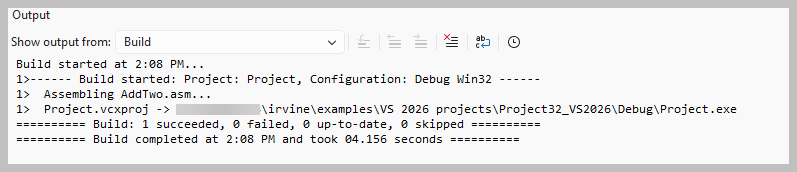 (The shaded area in this image represents a machine-specific path.)
If you do not see these messages, the project has probably not been modified since it was last built. No problem--just select Rebuild Project from the Build menu.
Run the Program in Debug Mode
The easiest way to run your first program is to use the debugger. First, you must set a breakpoint. When you set a breakpoint in a program, you can use the debugger to execute the program a full speed (more or less) until it reaches the breakpoint. At that point, the debugger drops into single-step mode. Here's how to do it:
- Make sure the ASM source code file is open in the editor window.
- Click the mouse along the border to the left of the mov eax,5 statement. A large red dot should appear in the margin.
- Select Start Debugging from the Debug menu. The program should run and pause on the line with the breakpoint. (Optionally, you can close the Diagnostic Tools, Autos, and Call Stack windows.)
- Press the F10 key, which executes the Step Over command, to execute the current statement. Continue pressing the same key until the yellow arrow is next to the invoke statement in the source code.
- Press F10 one more time to end the program.
You can remove a breakpoint by clicking its dot with the mouse. Take a few minutes to experiment with the Debug menu commands. Set more breakpoints and run the program again.
Here's what your program will look like when paused at the breakpoint: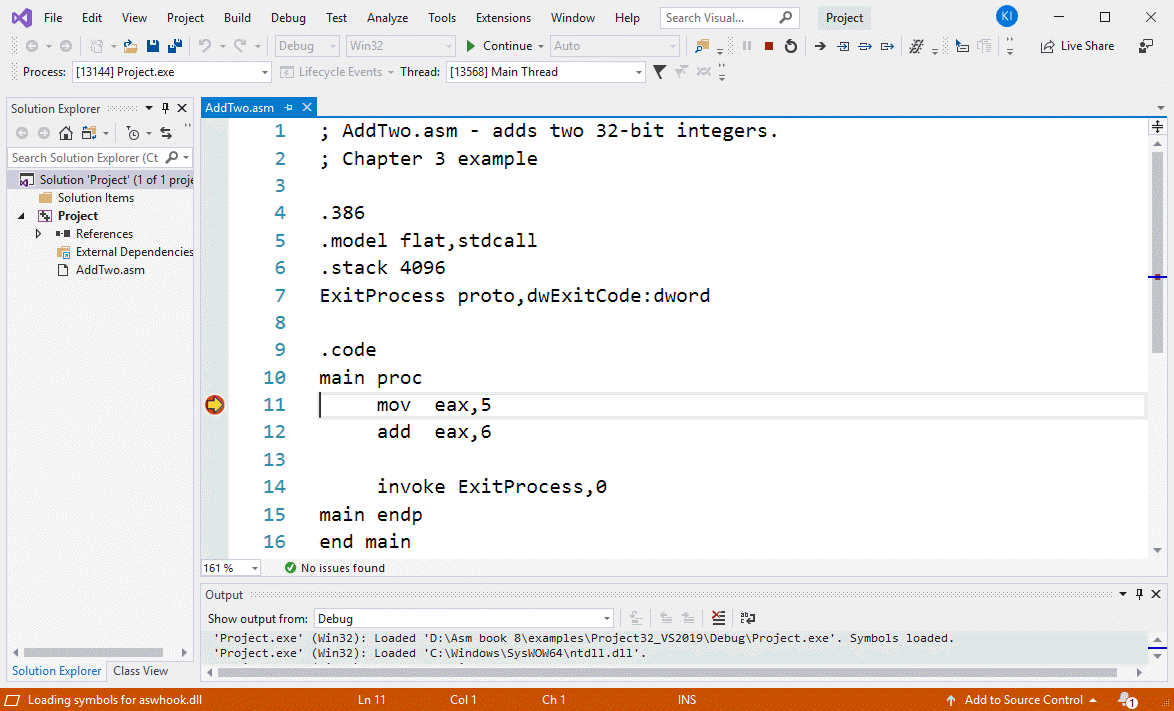
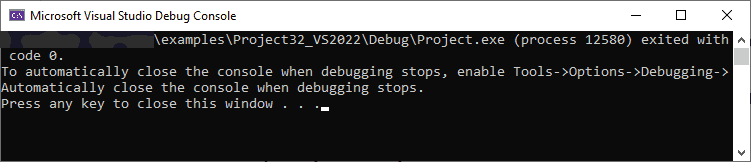
Running a program from the Command Prompt
When you assembled and linked the sample project, a file named Project.exe was created inside the project's \Debug folder. This file executes when you run the project. You can execute any exe file by double-clicking its name inside Windows Explorer, but it will often just flash on the screen and disappear. That is because Windows Explorer does not pause the display before closing the command window. On the other hand, you can open a Command prompt window, move to the Debug directory, and run Project.exe by typing "Project" (without the quotes). You might want to do some online reading about Windows shell commands if you plan to use the command line.Registers
Soon you will want to display CPU registers when debugging your programs. Here's how to make them visible: First, under the Tools >> Options menu, select Debbuging in the left panel, and select Enable address-level debugging. Next, set a breakpoint in your source code on an executable statement, run your program in Debug mode, select Windows from the Debug menu, and then select Registers from the drop-down list.
The Registers window may appear docked to the Visual Studio workspace, but you may find it helpful to let the window float so you can move it anywhere on your computer desktop. You can grab the window header with the mouse and pull it to a new location. You will also want to display the CPU flags inside the Registers window. To do that, right click inside the Registers window and check the word Flags from the popup menu. Here's what it looks like: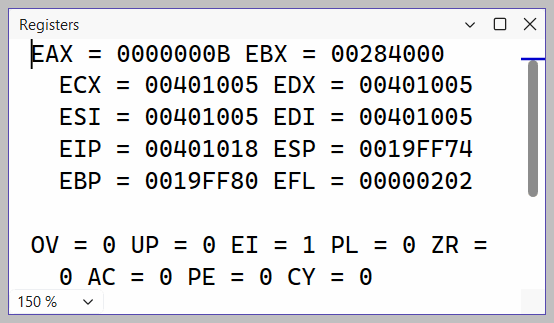
Building and Running Other Programs
Suppose you want to run another example program, or possibly create your own program. You can remove the existing assembly language file from the Solution Explorer window and insert a new .asm file into the project.
- To remove a program from a project without deleting the file, right-click its name in the Solution Explorer window. In the context menu, select Remove. If you change your mind and decide to add it back to the project, right-click in the same window, select Add, select Existing item, and select the file you want to add.
Adding a File to a Project
An easy way to add an assembly language source file to an open project is to drag its filename with the mouse from a Windows Explorer window onto the name of your project in the Solution Explorer window. The physical file will not be copied--the project only holds a reference to the file's location. Try this now:
- Remove the AddTwo.asm file from your project.
- Add a reference to the file Examples\ch03\AddTwoSum.asm to the project.
- Build and run the project.
Copying a Source File
One way to make a copy of an existing source code file is to use Windows Explorer to copy the file into your project directory. Then, right-click the project name in Solution Explorer, select Add, select Existing Item, and select the filename.
Tutorial: Building and running a 64-bit program
In this tutorial, we will show you how to assemble, link, and run a sample 64-bit program. We assume you have already completed our tutorial entitled Building a 32-Bit Assembly Language Program.Do the following steps, in order:
- Following the instructions at the top of this web page, download the Project64_VS2026.zip file and unzip it into your working directory.
- In Visual Studio 2026, select Open Project from the File menu, navigate to the Project64_VS2026 folder, and select the file named Project.sln.
- You are about to add an existing source code file to the project. To do that, right-click on Project in the Solution Explorer window, select Add, select Existing Item, navigate to the book's Examples\ch03\64 bit" folder, select AddTwoSum_64.asm, and click the Add button to close the dialog window.
- Open the AddTwoSum_64.asm file for editing by double-clicking its filename in the Solution Explorer window.
You should see the following program in the editor window:
; AddTwoSum_64.asm - Chapter 3 example.

ExitProcess proto

.data
sum qword 0

.code
main proc
   mov  rax,5
   add  rax,6
   mov  sum,rax

   mov  ecx,0
   call ExitProcess

main endp
end
(Notice that the program's entry point is the main procedure. If you wish to use a different name for your startup procedure in your own programs, you can modify this option by selecting Properties from the Project menu, and then selecting Linker / Advanced / Entry Point.)
Build the Program
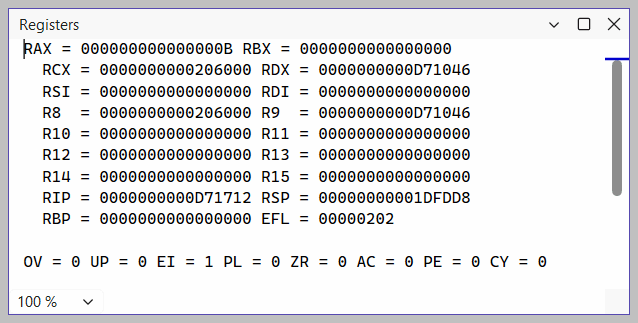
Select Build Project from the Build menu. You should see text written to Visual Studio's output window like the following:1>------ Build started: Project: Project, Configuration: Debug x64 ------ 1> Assembling AddTwoSum_64.asm... 1> Project64.vcxproj -> ...\Project64_VS2022\x64\Debug\Project.exe ========== Build: 1 succeeded, 0 failed, 0 up-to-date, 0 skipped ==========If you do not see these messages, the project has probably not been modified since it was last built. No problem--just select Rebuild Project from the Build menu. You use the same Visual Studio commands to run and debug 64-bit programs as you would for 32-bit programs. Notice that the Registers window displays all the 64-bit registers:
Building 16-bit programs (Chapters 14-17)
Only Chapters 14 through 17 require you to build 16-bit applications. Except for a few exceptions, which are noted in the book, your 16-bit applications will run under the 32-bit versions of Windows (Windows XP, Windows Vista, Windows 7).
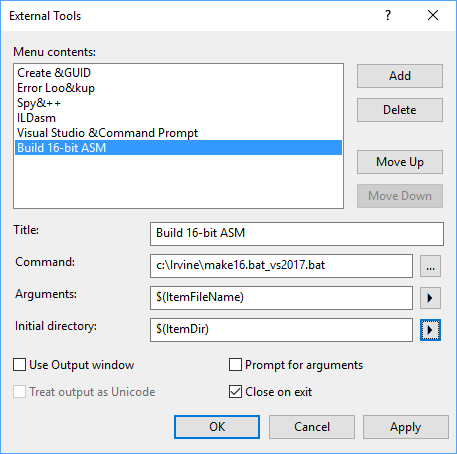
If you plan to build 16-bit applications, you need to add two new commands to the Visual Studio Tools menu. To add a command, select External Tools from the Tools menu. The following dialog will appear, although many of the items in your list on the left side will be missing. Download the batch file here (rename the .txt extension to .bat after downloading): make16_vs2026.txt.
Step 1: Create the Build 16-bit ASM Command
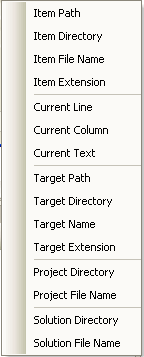
Click the Add button and fill in the Title, Command, Arguments, and Initial directory fields as shown in the screen snapshot. If you click the buttons with arrows on the right side of the Arguments and Initial directory fields, a convenient list appears. You can select an item without having to worry about spelling:
Click the Apply button to save the command.
Step 2: Create the Run 16-bit ASM Command
Click the Add button again, and create a new command named Run 16-bit ASM:
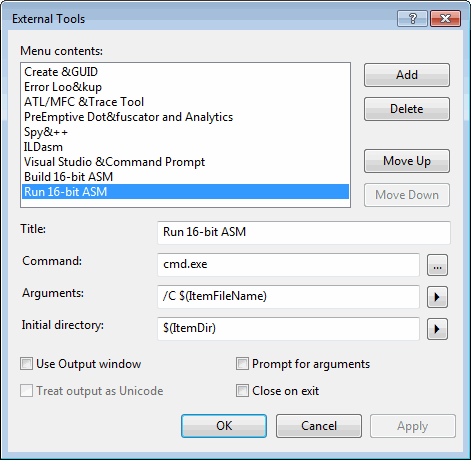
Uncheck the "Close on exit" option and click the OK button to save the command and close the External Tools dialog.
Testing Your new 16-Bit Commands
To test your new 16-bit commands, close any Visual Studio project that happens to be open. Then, select File | Open | File from the menu and choose the file named 16-bit.asm from the ch03 folder in the book's example programs. Select Build 16-bit ASM from the Tools menu. The following command window should appear, showing the successful execution of the assembler and linker, followed by a listing of all files related to this program:
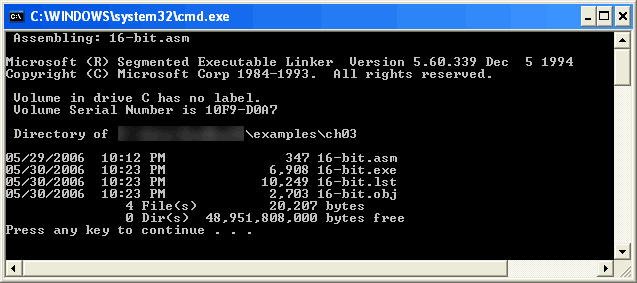
Press a key to close the window. Next, you will run the program. Select Run 16-bit ASM from the Tools menu. The following window will appear, although the contents of all registers except EAX will be different:
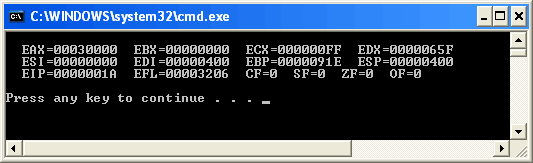
Press a key to close the window.
You have completed the setup for building and running 16-bit assembly language programs.
Upgrading Existing Visual Studio Projects to VS 2026
Visual Studio 2026 makes it easy to convert an existing project to the current version. We suggest you first make a backup copy of your existing projects. Next, in the Visual Studio IDE, select Open from the File menu, then select Project/Solution. The Setup assistant dialog will then notify you that your Platform Toolset is outdated: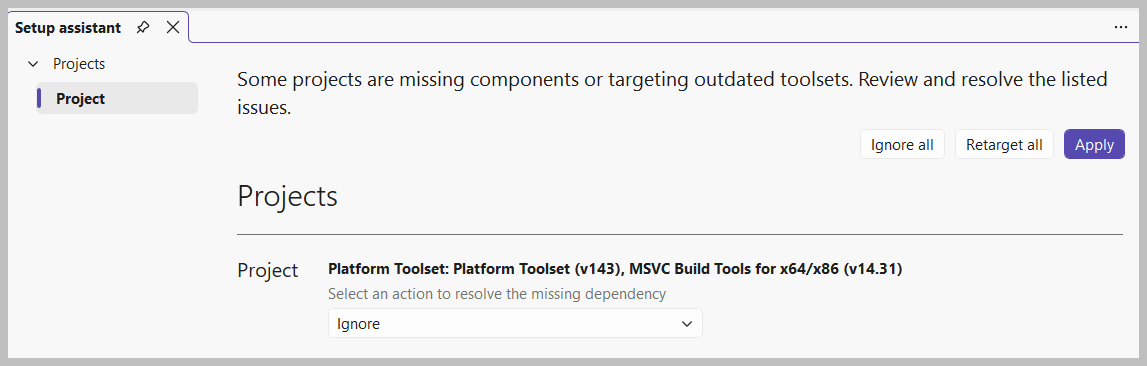 Select the Retarget all button and then click the Apply button. And just like that, your project will be ready to go in VS 2026. Note: once you convert a project to VS 2026, you cannot revert it to the original version!
Was your program's EXE file blocked by an Antivirus scanner?
Antivirus scanner software has improved greatly in recent years, and so have the number of viruses (one website reports 50,000 at present). Because of this, your computer's antivirus scanner may report a false positive when you build your program, and refuse to let you run it. There are a few workarounds: (1) You can add your project's bin/debug folder into an exclusion list in your antivirus configuration. This is my preferred approach, and it nearly always works. (2) You can suspend your realtime antivirus scanner software, but this will leave you open to malware for a short time. If you choose this option, be sure to temporarily disconnect your computer from the Internet. Return to top